Operations forms
These are the forms and periodic operations that users and support engineers work with daily.
Incoming messages
Form: DEVIntegMessageTable
The message log — one record per inbound file, queue item, or API response, with the original payload attached.
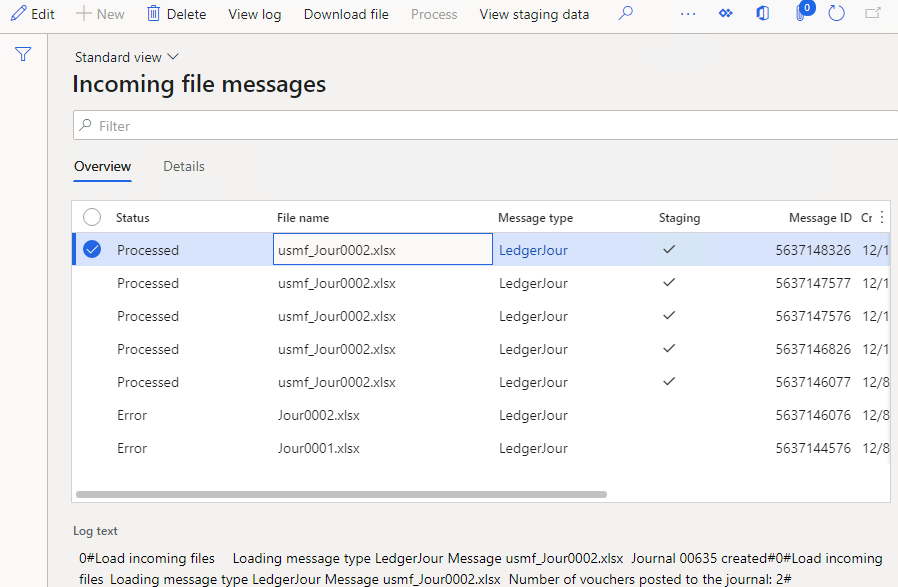
Every message has a status:
- Ready — loaded into D365FO and waiting for processing.
- In process — system status while a message is being processed.
- Processed — completed successfully.
- Error — failed validation or processing; the error log is stored on the message.
- Cancel — a user decided not to process the message (the alternative to deleting). In early versions this status was called Hold.
From this form you can:
- download the original payload (Download file),
- view the detailed error log and the staging data parsed from the message,
- reprocess a message by resetting its status,
- open the document that was created from the message,
- view processing statistics — duration, time, number of lines.
A Processing attempts counter increments on every failed attempt; the processing batch job can filter on it to stop retrying messages nobody is fixing, while still allowing automatic recovery when missing data (like a customer record) appears later.
The goal state for a support team: every message ends as either Processed or Cancelled.
Load messages
Periodic operation
A batch job that connects to the source defined by one or more inbound message types, creates Incoming messages records with the payload attached, and (for file channels) moves files to the Archive folder. With Run processing enabled it processes the loaded messages immediately.
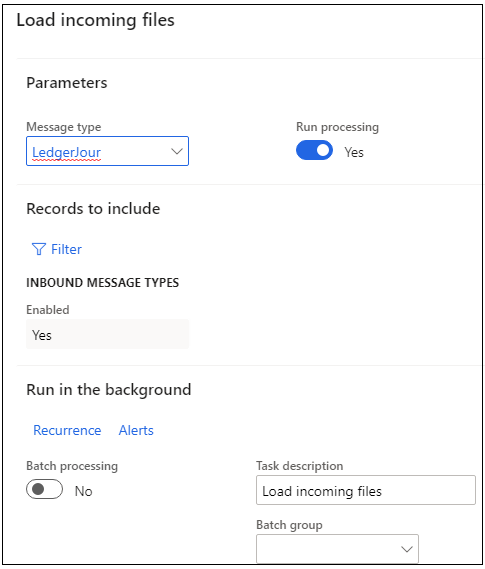
For web-service sources the dialog shows the Transaction time (last loaded timestamp), which you can override to reload data from a specific period.
Process incoming messages
Periodic operation
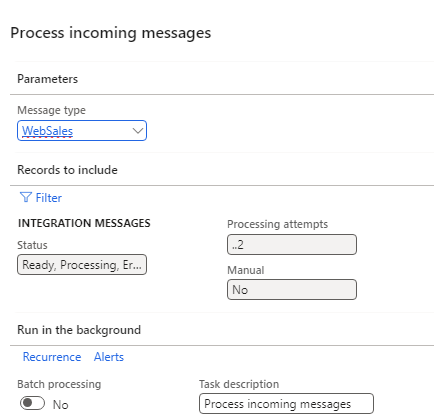
Selects all unprocessed messages and calls the processing class for each. Parallel processing (configured on the message type) splits the workload into batch threads. The dialog supports filtering, including by Processing attempts.
Manual load
Processes a payload pasted as text (or uploaded as a file) exactly as if it came from the connector — no external system required. Messages created this way are marked Manual in the message log.
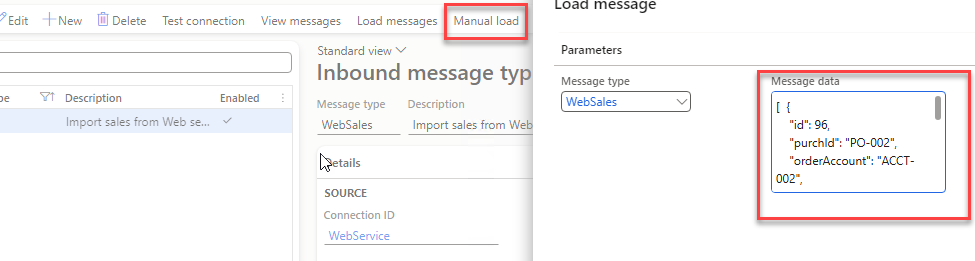
This is the framework's main testing and troubleshooting tool: a developer can reproduce any production issue in a dev environment from the message payload alone. See it in action in the sales order import tutorial.
Service test
Form: DEVIntegServiceTest
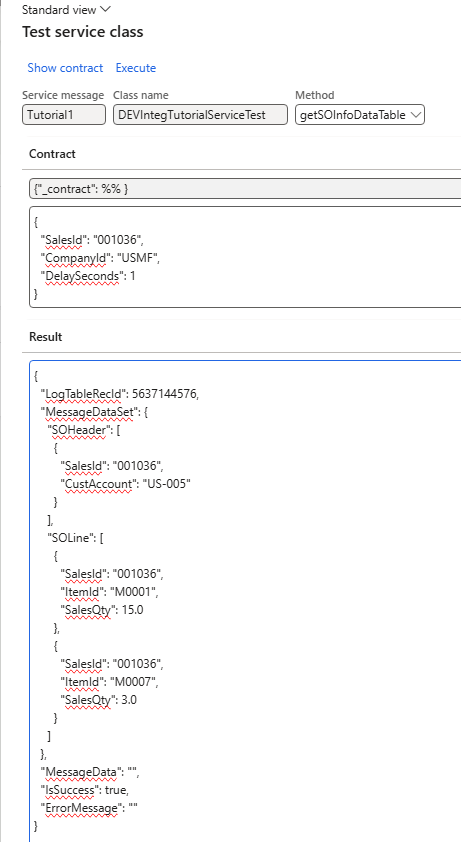
Runs any registered service message type inside D365FO. The form auto-generates an input contract for the class — fill in the parameters and press Execute to see the response, without Postman or any external tool.
Manual test (outbound)
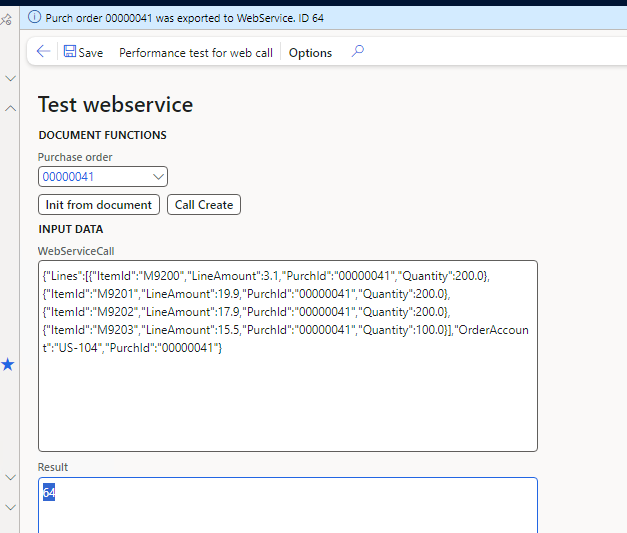
For event-based exports, the sample Manual test form (DEVIntegTutorialTestWebCall in the Samples model) can build the payload for any document (Init from document), display it without sending, and perform a real call with edited data (Call Create).
Performance test
Periodic operation (DEVIntegExportDocumentPerfTest)
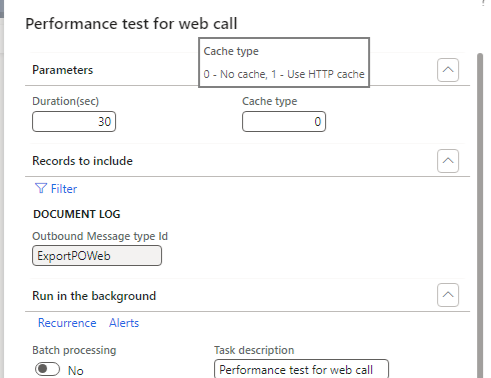
Measures export throughput: it takes a query filter over the Export document log and processes matching records in a loop for a given Duration, either reusing one connection or creating a new one per line — which quickly shows the cost of connection setup and authentication.
For inbound scenarios, the framework's parallel processing has been tested with 1 million ledger journal lines.